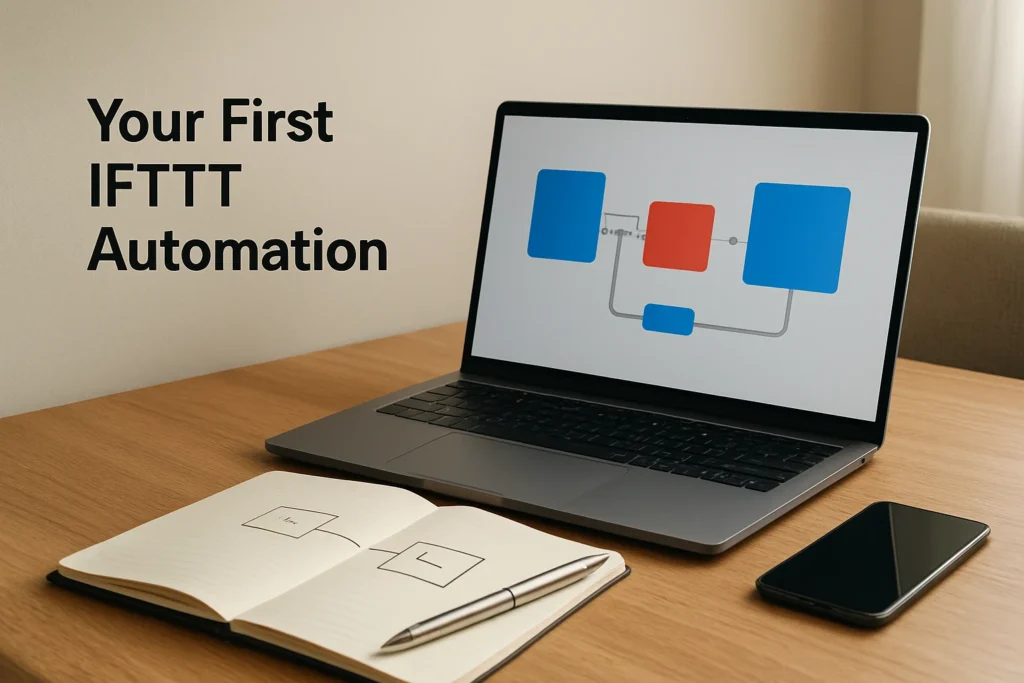
Learning how to use IFTTT starts with one simple pattern: when a selected event occurs, IFTTT requests a corresponding action. These automations are called IFTTT Applets. For your first one, choose a repeatable trigger, connect the required service accounts, configure one clear action, enable the Applet, generate the trigger event, and confirm that the expected result reaches its destination.
How to use IFTTT for a first successful Applet
You need an IFTTT account and accounts for the services you intend to connect. You can work through the IFTTT website or its iOS or Android app. If your automation depends on phone features, keep the mobile app installed and signed in and grant only the operating-system permissions the workflow requires.
Use this quick path to produce your first result:
- Define the event. Write down one observable occurrence for IFTTT to watch, such as a supported service receiving or publishing a new item.
- Define the outcome. Choose one specific response, such as creating an item in another supported service or sending a notification.
- Find or create an Applet. Use an existing Applet if it already offers the required trigger and action. Otherwise, build a custom one.
- Connect the services. Sign in to the relevant accounts and review the requested access before authorizing each connection.
- Configure and enable it. Select the right account, destination, device, and values wherever the Applet provides those fields.
- Generate the trigger. Perform the source event yourself, then verify both that the Applet ran and that the destination received the intended result.
A successful test has two parts. IFTTT should register the run, and the correct destination should contain the expected output. Checking only one side can hide an incorrect destination or a badly mapped value.
Choose a useful first automation
Start with a small task that happens repeatedly and has an unambiguous result. “Do something with my updates” is too broad. “When this supported event occurs, create one item in that destination” is easier to configure and test.
Existing Applets reduce setup because the trigger-and-action structure is already defined. You generally connect the required services and customize the fields the Applet makes available. A custom Applet is more appropriate when you need to choose a different supported trigger, action, account, destination, or value.
Before investing time in either route, inspect the components offered by both services. Every integration controls its own triggers, actions, and data fields. The presence of a service on IFTTT does not mean it supports the exact event or response you have in mind.
Connect services and enable an existing Applet
Open IFTTT, sign in, and discover Applets related to the source event or desired destination. Examine the Applet before enabling it so you understand what starts it, what action it requests, and which services must be connected.
- Review the trigger and action. Confirm that the trigger describes your actual source event and that the action creates the result you want.
- Connect the required accounts. Sign in to each participating service when prompted. Read the access request and authorize only the accounts needed for this automation.
- Complete the available fields. Select the intended account, device, folder, channel, list, or other destination where those choices are offered. Enter any required message or value.
- Enable the Applet. Confirm that it is active and ready to wait for its trigger.
- Create the source event. Produce a fresh event that meets the trigger definition rather than relying on an older item.
- Check the result. Review the Applet’s run information and inspect the destination service for the expected action.
Do not assume that successful activation proves the workflow is correct. Similar account names, devices, folders, or destinations can lead to a technically successful action appearing in the wrong place.
Create a custom IFTTT Applet
Create a custom Applet when no existing option matches the supported event and outcome you need. IFTTT expresses this as an “if this, then that” relationship: the “if” side is the trigger, and the “then” side is the action.
- Start a new Applet. Use IFTTT’s creation option and begin with the trigger side.
- Choose the trigger service. Select the service that produces the event you want IFTTT to watch.
- Select a trigger. Choose one of the events that the service actually exposes. Supply any required input that narrows or identifies the event.
- Choose the action service. Select the service or device that should respond after IFTTT detects the trigger.
- Select an action. Pick the supported operation that creates your intended outcome.
- Configure the action fields. Choose the destination account or device and fill required fields. Where available, insert values supplied by the trigger so the output reflects the event that started the Applet.
- Review and enable the Applet. Check the complete trigger-to-action relationship, save it, and make sure it is active.
- Run a controlled test. Generate a new source event, inspect the run information, and look for the result in the destination.
A simple illustrative workflow
Suppose a source service exposes a trigger for a newly published item and a destination service exposes an action for creating a reminder. The intended workflow could be:
- Trigger A new item is published by the connected source account.
- Mapped value The source item’s available title is placed in the reminder title field.
- Action The destination service creates the reminder in the selected list.
- Success condition A newly published test item causes one reminder with the expected title to appear in the correct list.
This example is a design pattern rather than confirmation that every publishing or reminder service offers those components. Check the available trigger, action, and fields before using it. If the reminder appears but has an empty or unhelpful title, return to the action configuration and map a more appropriate value supplied by the trigger.
Check a failed or incorrect Applet
If the expected result does not appear, work from the least disruptive checks to rebuilding the automation:
- Confirm the Applet is active. An Applet that is disabled will not respond to new events.
- Inspect its run information. Determine whether IFTTT detected the trigger and whether the action completed or failed.
- Recheck the trigger. Make sure your test event is new and meets every configured condition or required input.
- Inspect the destination. Verify the selected account, device, folder, list, or channel and check that all required action fields contain suitable values.
- Review authorization. Reconnect a service if its password changed, permission was revoked, or authentication expired.
- Check phone permissions where relevant. Phone-based workflows may need background access, notifications, location, or another device permission to remain enabled.
- Review the connected services. Service availability, API revisions, authentication changes, and rate limits can interrupt an Applet that previously worked.
Run another controlled test after changing one thing. This makes it easier to identify the actual cause. Timing can also vary by integration because some connections poll for events while others depend on APIs or device events, so a result should not automatically be treated as failed merely because it was not immediate.
Build on the working result
Once your first Applet produces the correct action, leave it simple until it has handled a few normal events successfully. Then refine the destination or mapped values if needed. More advanced transformations and conditions depend on the components exposed by the services and, in some cases, paid capabilities. A reliable one-trigger, one-action workflow is the best foundation for learning how IFTTT behaves with your chosen accounts and devices.
Explore more technology guides on Techistuff.
Frequently Asked Questions About Using IFTTT
What are IFTTT Applets?
Applets are automations that connect a specified event to a corresponding action. A basic Applet watches for a trigger exposed by one supported service and requests the configured action when that event is detected.
Are IFTTT recipes the same as Applets?
IFTTT currently calls each automation an Applet. If older or third-party instructions use the phrase IFTTT recipes, check that their described trigger, action, and configuration fields are still available before following them.
How long does an IFTTT Applet take to run?
There is no single timing guarantee for every Applet. Execution behavior depends on the participating integrations because some use polling, while others rely on service APIs or device events. Confirm the outcome in the destination and inspect the Applet’s run information if it does not appear.
Do I need the IFTTT mobile app for an Applet to work?
Many cloud-based Applets can run without the mobile app. Phone-dependent services require the app to remain installed and signed in, with relevant operating-system permissions such as notifications or location enabled when the automation needs them.
Why can’t I find the trigger or action I need?
Each connected service decides which triggers, actions, fields, and combinations it exposes to IFTTT. A service appearing in the directory does not guarantee support for every possible event. Inspect its available components before designing the rest of the Applet.