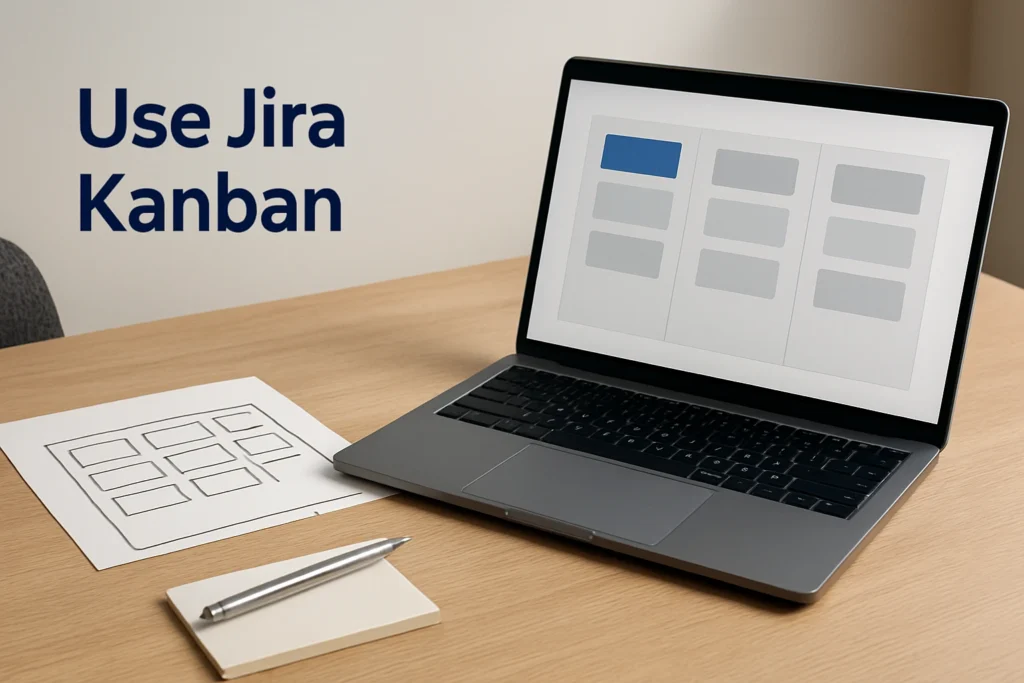
A Jira Kanban board displays Jira work items as cards in workflow-based columns, helping a team see what is waiting, underway, blocked, or complete. To build a useful first board, choose the body of work it should represent, configure a small number of meaningful stages, add or select a work item, and move that item through an allowed workflow transition. The final check is that both the board and the work item show the intended status.
Create Your First Jira Kanban Board
Before creating a board, decide which work it needs to show. This may be the work owned by one project, one team, or another clearly defined operational scope. Starting with that boundary prevents unrelated items from crowding the board and reduces the chance that important work will be hidden among tasks belonging to other processes.
Use Jira through its web interface and follow this quick-start sequence:
- Choose the work source. Identify the Jira project or defined body of work that the team will manage. Confirm that the intended contributors can access those work items.
- Create or open its board. If a suitable board already exists, open it rather than creating a duplicate. Otherwise, create a board associated with the intended work scope and give it a name that identifies the team or process.
- Review the visible stages. Check that the columns represent the important states in the team’s real workflow.
- Add or select one work item. Give it a clear summary, an owner where appropriate, a priority, and the correct starting status.
- Move the item forward. Use an available workflow transition as work begins, then verify that the card appears in the expected stage and the underlying item records the intended status.
The setup is successful when the Kanban board in Jira opens with the intended items, or with an expected empty state if no matching work has been created yet. If board creation or configuration controls are unavailable, a project owner or Jira administrator may need to perform that part of the setup.
How a Board Differs From an Issue List
An issue list is useful for scanning fields, sorting records, and finding individual work items. A board instead emphasizes flow. It groups cards by meaningful workflow stages so the team can recognize where work is accumulating and which items should move next.
The board does not create a second copy of each task. It is a view of the underlying Jira work items, which can include a summary, description, priority, assignee, status, and other configured fields. Updating the workflow state affects how that item is represented across Jira’s views.
This distinction matters when diagnosing discrepancies. If an item exists in a list but does not appear on the board, the likely issue is not that the task has disappeared. Its project, board scope, current status, or the viewer’s access may not match what the board can display.
Set Columns That Reflect the Real Workflow
A useful Jira Kanban workflow has enough stages to expose meaningful changes without recording every minor activity. A simple team might use stages equivalent to waiting, active work, review, and completion. The exact names should match the team’s language because Jira statuses are configurable rather than universal.
Start by writing down the states a work item genuinely passes through. Then configure the board’s visible columns to represent those stages. Jira workflows connect statuses with transitions, so a card should only move along paths permitted by the underlying workflow. A board layout should not suggest that an item can enter a stage when the workflow provides no appropriate transition.
Keep the design easy to interpret:
- Use a distinct starting stage for work that is ready but has not begun.
- Separate active work from waiting work so ownership and current effort are visible.
- Represent review or approval only if it is a genuine handoff in the process.
- Make blocked work conspicuous through the team’s established fields or conventions rather than treating it as normal progress.
- Use a clear completion stage that corresponds to the team’s actual definition of finished.
Avoid adding a status for every small action. Excessive stages make updates burdensome and obscure the handoffs the board is intended to expose. If several teams use the same project, involve the project owner before changing shared workflows or statuses.
Add, Prioritize, and Move Work
Once the board reflects the workflow, use it as the team’s daily view of current work. Create a work item when a new deliverable enters the system, or select an existing item already included in the board’s scope. Its summary should describe an outcome rather than a vague activity. Add enough description for the assignee to understand the requirement, then set ownership, priority, and the appropriate starting status.
Priority and status answer different questions. Priority indicates relative importance, while status indicates the item’s current workflow state. Raising a task’s priority does not mean work has started, and moving it into an active stage should not be used merely to make it more visible.
Worked Example
Suppose a content team creates a work item named Publish customer guide. The item begins in the team’s waiting stage, has an assigned owner, and includes a description covering drafting, review, and publication requirements.
- Open the board and confirm that Publish customer guide appears in the intended starting column.
- When drafting actually begins, move the item through the available transition into the team’s active-work status.
- Open the underlying work item and confirm that its recorded status matches the stage shown on the board.
- When the draft is ready for editorial review, use the next permitted transition rather than treating review as completed work.
- Move the item to the completion stage only after the team’s publication criteria have been met.
If the illustrative item remains in its old column or shows an unexpected status, do not keep moving it back and forth. Review the available workflow transitions and the board’s stage configuration. The mismatch may indicate that the visible board structure and the underlying workflow do not describe the process in the same way.
Use Jira Kanban as a Daily Workflow
During routine use, the board should answer three practical questions: what is ready, what is being worked on, and what needs attention before it can progress. Team members should update items when their state genuinely changes, not only before a meeting or report.
A lightweight daily routine is usually enough:
- Review active items and confirm that each has a clear owner.
- Inspect high-priority waiting work before starting something new.
- Identify cards that have stopped moving and record the reason in the relevant item.
- Use only valid workflow transitions when work changes stage.
- Confirm completed items meet the team’s agreed completion criteria.
Consistent updates are essential. Jira can provide boards, reports, and dashboards, but those views are only as reliable as the ownership, priority, status, and workflow information maintained by contributors.
Keep the Board Trustworthy
A visually tidy board can still be misleading if it excludes relevant work or places cards in stages that do not match their recorded state. When something looks wrong, check the least disruptive causes first:
- Check the work item itself. Confirm its project, status, assignee, and other relevant fields.
- Check the board scope. Determine whether the item belongs to the body of work the board is intended to display.
- Check the workflow stages. Make sure the item’s current status has a meaningful place in the board layout.
- Check access. If one person can see an item and another cannot, ask the project owner to review their permissions rather than recreating the task.
- Escalate configuration issues. Ask the appropriate project owner or administrator to review shared workflows, board configuration, or permissions before making structural changes.
After the first board is working, use it with a small set of real items for several work cycles. Rename or consolidate stages that repeatedly confuse contributors, but preserve distinctions that reveal genuine ownership changes, approvals, or blockers.
Explore more technology guides on Techistuff.
Frequently Asked Questions About Using Jira Kanban Boards
What is a Kanban board in Jira?
A Kanban board in Jira is a visual view of work items moving through workflow-based stages. Each card represents an underlying Jira work item, while the columns help a team see queued, active, blocked, and completed work without reviewing items individually in a list.
Can a Jira Kanban board show more than one project?
That depends on how the board’s work scope is configured and what its viewers can access. Do not assume a board includes every relevant project. If cross-project work is required, ask the board or project owner to confirm that the intended items are included and that team members have suitable access.
Why can’t I see an issue on my Jira board?
Check whether the work item belongs to the board’s defined scope, whether its status is represented by a visible workflow stage, and whether you have permission to view it. If those checks do not reveal the cause, ask the project or board owner to review the configuration and access rules.
Do I need a sprint to use Jira Kanban?
No. Kanban is designed around continuous flow rather than a time-boxed sprint. A team can maintain a queue, start work when capacity is available, and move each item through its workflow. Scrum planning and sprint management are separate practices and are not required for this workflow.