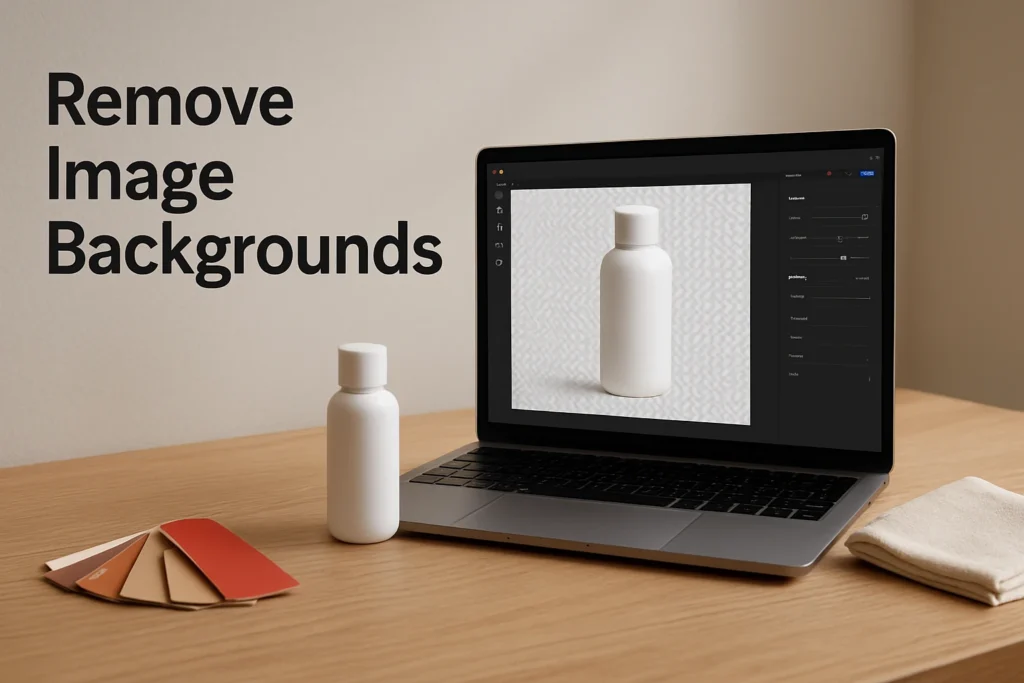
The Adobe Express background remover lets you isolate a subject, inspect the resulting cutout, and place it on a transparent, plain, or designed background. Open Adobe Express on the web, iOS, or Android, begin an image project, and select the photo you want to edit. The workflow is useful for product cutouts, profile pictures, social posts, and simple marketing graphics, although automated results still need a careful edge check.
Use the Adobe Express background remover
Start with the clearest source image you have. A sharply focused subject with visible edges and good contrast from its surroundings gives an automated removal tool more information to work with. If the subject and background share similar colors, or if objects overlap the subject, expect to inspect the result more closely.
- Open Adobe Express and begin an image task. Use the Adobe Express website or mobile app, then start a design or image-editing task that allows you to add your own photo.
- Add the source image. Select the photograph from your device and allow it to load fully. Confirm that you chose the highest-quality practical version rather than a small preview or compressed copy.
- Select the image and apply background removal. Use the available background-removal action for the selected photo. Adobe Express processes the image and separates the detected foreground subject from its original surroundings.
- Inspect the cutout. Look around the entire outline rather than checking only the most obvious edge. Pay particular attention to hair, fur, handles, gaps between limbs, translucent objects, and areas where the foreground and background have similar colors.
- Test the result on a contrasting background. Temporarily place a color behind the cutout that differs from both the subject and the original scene. This reveals leftover halos, missing sections, and unwanted fragments more clearly than a transparency pattern alone.
The first success check is simple: the original background should no longer be visible, while the part of the subject needed for the final design should remain intact. Zoom in enough to inspect difficult edges, then zoom back out to judge whether any small imperfection remains noticeable at the intended output size.
A practical product-photo example
For an illustrative example, upload a photograph of a ceramic mug taken in a room and run the Adobe Express remove background action. Place the resulting mug cutout over a dark temporary color. Check the outer rim, the empty space inside the handle, and the contact area beneath the mug. If part of the handle disappears or room color remains inside it, retry with a sharper, higher-contrast source photograph rather than assuming the first automated result is final.
Edit the cutout for your intended design
Background editing in Adobe Express can continue inside a larger design. Once the original surroundings are gone, keep the subject selected while you build the new composition around it. Adobe Express supports image editing, drag-and-drop arrangement, templates, creative assets, and resizing, so the cutout can become one element in a social graphic, flyer, profile image, or promotional layout.
Choose the background according to how the file will be used:
- Transparent background works when the cutout must be reused over several websites, slides, or layouts. It avoids locking the subject to one color, provided the selected export preserves transparency.
- Solid background is useful for profile images, marketplace-style product graphics, and consistent campaign assets. Choose a color that creates clear separation from the subject.
- Image or designed background suits finished social and marketing graphics. Keep detailed patterns away from important subject edges so the composition remains legible.
Resize the subject proportionally and position it with enough space around important details. Avoid enlarging a small source image so far that it becomes visibly soft. If text will sit beside the subject, establish the final layout before judging the cutout because scale and background color can change how edge defects appear.
The available information confirms automated background removal but does not establish a specific manual erase or restore control. If your editor presents refinement tools, use them carefully at a magnified view. Otherwise, retry with a better source image or move the cutout to a specialist image editor when individual pixels or complex masking require precise control.
Save or export the background-free image
When the composition is finished, use the Adobe Express export or download option and select a format suited to the destination. Adobe Express supports JPEG, PNG, PDF, GIF, and PPT exports, although only some are sensible choices for a static background-free image.
- Choose PNG when a transparent result is available and you want to reuse the cutout. PNG supports transparency and is the practical choice for many logos, product cutouts, and layered-looking web graphics.
- Choose JPEG for a finished image with an opaque background where smaller photographic files are more important than transparency. JPEG cannot retain a transparent background.
- Choose PDF when the image is part of a document or flyer rather than a standalone reusable cutout.
After exporting, reopen or preview the saved file outside the editor. Place a supposedly transparent PNG over a contrasting color, or view the finished JPEG against its intended destination. The file is ready when the subject remains intact, no original background is visible, the dimensions suit the destination, and transparency or the replacement background appears as intended.
Fix common background-removal problems
When the result is not usable, identify the visible symptom before repeating the same action:
- A pale or dark halo surrounds the subject. Test the cutout against both light and dark colors. If the halo remains obvious, retry with a source image that has stronger edge contrast.
- Part of the subject is missing. Look for areas where the subject matches the original background. A clearer photograph, different angle, or simpler backdrop can help the automated separation.
- Hair or fur looks uneven. Judge it at the final display size rather than only under heavy magnification. If the defect remains distracting, use a more precise editor designed for detailed masking.
- Open spaces remain filled. Inspect handles, spaces between fingers, chair legs, and similar enclosed areas. Retry with a sharper image if the tool treats those spaces as part of the subject.
- A natural shadow disappears. Decide whether the design needs the original shadow. You may need to add a separate design shadow or use a specialist editor when retaining the exact photographic shadow is essential.
For the fastest improvement, simplify the input before changing the design. Use a well-lit, in-focus image with a distinct subject and an uncluttered background. If repeated attempts still remove important detail, the task has moved beyond quick automated background removal and is better suited to a precision masking workflow.
Explore more technology guides on Techistuff.
Frequently Asked Questions About Using Adobe Express Background Remover
Can Adobe Express remove an image background automatically?
Yes. Adobe Express includes background removal among its practical photo-editing tools. It can isolate a prominent subject automatically, but you should inspect the result because low contrast, fine details, shadows, and visually busy scenes can affect the cutout.
How do I change the background after removing it?
Keep the cutout in an Adobe Express design, then place a solid color, another image, or design elements behind it. Resize and position the subject for the composition, and check its edges against the actual replacement because mistakes can be difficult to see on a transparency grid.
Which format should I use to preserve transparency?
Choose PNG when Adobe Express offers a transparent download for the design. PNG can store transparency, whereas JPEG cannot and will produce an opaque result. After downloading, reopen the file over a contrasting background to confirm that transparency was preserved.
Is Adobe Express Background Remover free?
Adobe Express has an ongoing Free plan with no credit card required, according to plan information verified on September 24, 2026. However, the available plan details do not confirm the exact Free entitlement or usage limit for background removal. Check the access message shown by the tool before building a recurring workflow around it.