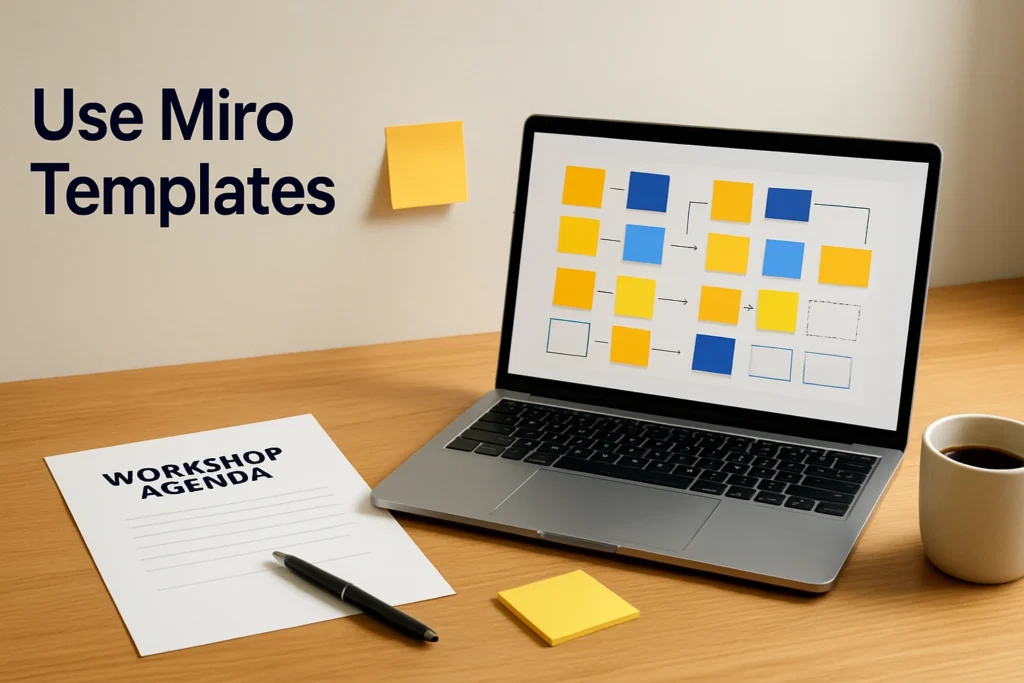
Miro templates provide prebuilt structures for workshops, maps, planning sessions, feedback exercises, and other collaborative activities. To start faster, choose one according to the outcome your team needs, create an editable board from it, replace generic content with session-specific instructions, and test access before sharing. The template supplies the layout, but the facilitator still needs to make the sequence, participant actions, and intended deliverable clear.
Choose Miro templates for the job
Begin with the activity rather than the appearance of the layout. Effective Miro board templates reduce setup work because their structure reflects what participants need to do. A visually polished template can still be a poor fit if it collects the wrong kind of input or produces an unclear result.
Define four things before choosing:
- Participant activity Decide whether people will generate ideas, group observations, map relationships, review material, comment, vote, or turn discussion into assigned actions.
- Meeting format A live workshop benefits from a visible sequence and focused activity areas. Asynchronous work needs more written context because contributors cannot rely on a facilitator explaining the board in real time.
- Desired output Name the artifact you want at the end, such as prioritized ideas, a journey map, a project plan, documented feedback, or a set of decisions and owners.
- Required customization Estimate how much of the initial structure you will keep. If most sections need to be rebuilt, a simpler layout or blank board may be more efficient.
For example, an idea-generation session needs generous contribution space and a way to organize related thoughts. A project-planning board needs visible responsibilities, dependencies, and next actions. A research map should make relationships and gaps easy to inspect. These are selection criteria rather than fixed category names, so judge each available template by the structure it gives your team.
Find and create a board from a template
Miro supports starting with either a blank canvas or a template. Use the web or desktop experience for setup because mobile apps have limited template support and mobile browsers are view-only.
- Open Miro and begin a new board. At the point where you choose how the board should start, select the template route instead of an empty canvas.
- Review the available template options. Match each candidate to your task, participant actions, and intended output. Look for a layout whose sections already suggest a useful working sequence.
- Inspect the starting structure. Identify where context will go, where participants will contribute, how the activity progresses, and where the final result will be recorded. Reject layouts that need substantial explanation or contain too many irrelevant areas.
- Create the board from the selected template. This turns the template structure into the working board you can adapt with your own text and visual material.
- Confirm that the board is editable. Change a placeholder, add a note, or update a heading. The success condition is an editable board containing the selected starting structure, ready for session-specific content.
Do not confuse a template with a completed facilitation plan. Miro board templates establish an initial layout, while the board owner determines the working rules, sequence, permissions, and final deliverable.
Customize the template before sharing it
First, remove sections that do not serve the session. An expansive canvas can accommodate complex work, but unused areas make navigation harder and leave participants uncertain about where to contribute. Keep reference material separate from active input areas.
Next, replace generic placeholders with direct instructions. Each activity area should explain what participants should add, where they should add it, and what level of detail is useful. A prompt such as Add ideas here is weaker than Add one note for each obstacle delaying handoff to development.
Add enough context for someone joining without a verbal briefing. Useful context includes the session objective, the order of activities, the expected output, and the person responsible for the next step. Miro boards can contain notes, text, drawings, diagrams, mind maps, images, documents, spreadsheets, and PDFs, but every item should support the activity rather than decorate the canvas.
Set access according to the participant’s role:
- Edit access for people who must add, arrange, or revise board material.
- Comment access for reviewers who should discuss content without changing the working layout.
- View access for observers or recipients who only need the resulting context.
Plan limits can affect the setup. Miro’s Free plan allows up to three editable boards and does not include private boards or the Guest role. That matters when a session requires restricted material, external guests, or several active template-based boards.
Run a quick template setup check
Review the board as if you were a participant seeing it for the first time. A ready board should answer four questions without a long explanation:
- What is this session trying to achieve?
- Where should I begin and where do I go next?
- What am I expected to add, change, or review?
- Where will I find the decision, plan, or other final output?
Check the share permission using the type of access participants will receive. Make sure instructions are visible, contribution areas are distinguishable from reference material, and the intended deliverable has a clearly identified location. If the workshop will be facilitated live, ensure the sequence is easy to guide. For asynchronous work, add enough written context that participants can proceed independently.
Illustrative retrospective setup
Suppose you select a retrospective-style structure for a product team. Replace broad placeholders with questions such as What slowed the release?, What helped us resolve issues?, and What should we change before the next release? Add an instruction asking each person to contribute one note per observation, then provide a separate area for agreed actions and owners.
The board is ready when every participant has an obvious place to add input, the questions relate to the team’s actual work, and the action area is distinct from the initial observations. If contributors could mistake examples for real input or cannot identify the next step, revise the layout before sending invitations.
Make the first session easier to run
For a new or occasional user, the best starting point is not the most elaborate template. Choose the smallest structure that can produce the required outcome, customize its language, and invite a colleague with the intended permission for a brief access check. Once that person can open the board, understand the sequence, add the expected input, and locate the deliverable, the template has become a usable collaborative board rather than merely a ready-made layout.
Explore more technology guides on Techistuff.
Frequently Asked Questions About Using Miro templates
Can I edit the content in a Miro template?
Yes. A template supplies an initial board structure rather than a locked final result. Adapt its prompts, text, visual material, diagrams, and activity areas to fit your objective. Remove anything participants do not need so the board communicates a clear sequence instead of preserving every default element.
Which permission should workshop participants receive?
Use edit access when participants need to add or move material. Comment access suits reviewers who should discuss content without changing the working layout, while view access is appropriate for observers. Test the intended role before the session, especially when the board contains material that should remain controlled.
Can I set up Miro templates on a phone?
The desktop or full web experience is the safer choice for template setup. Miro mobile apps have limited template functionality, and mobile browsers are view-only. Participants using mobile devices may therefore be unable to complete an activity designed around full board editing.
Can I save a customized board as a reusable template?
Do not assume a formal save-as-template option is available in every account or workspace. If you run a recurring activity, preserve a clean reference version with clear instructions and controlled editing access, then confirm which reuse or template-management options are available in your workspace before the next session.