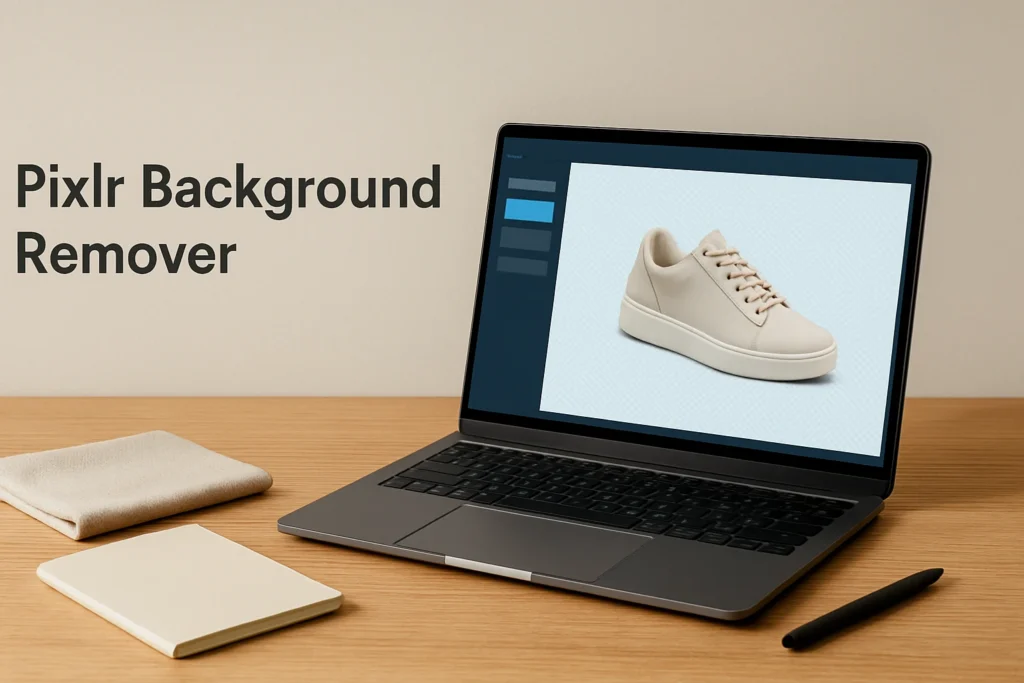
The Pixlr background remover workflow isolates the main subject of a photo so its original backdrop no longer appears. In the browser-based Pixlr Editor, you can open an image, use automatic masking or layer extraction, inspect the resulting cutout and export it as a PNG. Save an editable PXZ copy as well if you may need to repair edges later. The process works best when the subject is sharp and visually distinct from its surroundings.
Use the Pixlr Background Remover in Six Steps
- Open the source image. Start in the Pixlr browser Editor and add the image by uploading or dragging in a local file. Pixlr also supports clipboard content and image URLs. Confirm that the correct, full-resolution source has opened before editing.
- Preserve the original. Duplicate the image layer so you have an unchanged reference. This makes it easier to recover details without importing the image again.
- Isolate the subject. Apply Pixlr’s automatic masking or layer-extraction operation to the main subject. The expected result is a visible foreground object with the previous background hidden or separated from it. Some AI-assisted operations can consume plan-specific credits, and access may depend on the Pixlr experience or subscription in use.
- Inspect the cutout. Place a temporary, strongly contrasting layer below the subject. A dark layer reveals pale leftover pixels, while a light layer makes dark fringes easier to see. Check the complete outline rather than judging the result against Pixlr’s normal editing canvas.
- Refine visible mistakes. Use the subject’s mask and selection controls to hide background remnants or reveal parts of the subject removed by mistake. Undo, redo and history can reverse an unhelpful change.
- Save and export. Hide or remove the temporary inspection layer. Download a PXZ file if you want an editable version, then use PNG quick export for the finished image. Reopen or place the PNG over another color to confirm the intended result.
The final success check has two parts. The original background should no longer be visible, and the complete subject should remain intact. If either condition fails, return to the mask rather than exporting and attempting to repair the rendered PNG.
Prepare an Image That Produces a Cleaner Cutout
Background removal begins with source quality. Choose the largest clear version available, especially when the finished cutout will be displayed prominently. Compression artifacts, motion blur and heavy digital noise make it harder to distinguish the true subject boundary from nearby pixels.
Contrast matters as much as resolution. A dark shoe against a pale wall is generally easier to isolate than a dark shoe on a charcoal carpet. Look for clear separation around fine details such as hair, fur, laces, straps and plant leaves. Even lighting also helps because deep shadows can visually merge part of the subject with the backdrop.
Inspect the image before applying automatic removal. Confirm that the subject is not unintentionally cropped, that its important edges are in focus and that reflections or shadows are not being mistaken for part of the object. Decide whether a natural contact shadow belongs in the final design. Keeping it can make a product look grounded, while removing it creates a more flexible cutout.
Inspect and Refine the Removed Background
Automatic isolation is a starting point rather than a guarantee of perfect edges. View the cutout at a useful magnification and move around its complete perimeter. Check both a light and dark temporary background because a halo that disappears against one color may become obvious against another.
Use a mask for corrections when possible. Masking hides pixels without permanently deleting the underlying image, making it safer to restore a lace, strand of hair or narrow product edge. Work in small areas and use undo or history if a correction makes the outline less natural. Selections can help confine an adjustment to one region.
Pay particular attention to these problem areas:
- Hair and fur can contain narrow gaps and partially transparent edge pixels.
- Laces, jewelry and thin straps may be removed when they resemble the background.
- Glass, mesh and translucent fabric contain both subject and background information, so a fully opaque edge may look artificial.
- Low-contrast boundaries can retain a colored fringe from the original backdrop.
- Soft shadows require a deliberate keep-or-remove decision rather than indiscriminate erasing.
If a large section of the subject merges into the background, manual correction may consume more time than retaking or choosing another image. A sharper source with stronger contrast usually gives the automatic operation better visual information to separate.
A Practical Shoe Photo Example
Consider an illustrative product photo of a white running shoe against a plain gray backdrop. Open the image, duplicate its layer and apply automatic masking or layer extraction. Add a temporary dark blue layer underneath. The contrast may reveal gray pixels trapped between the laces and a thin halo around the pale sole.
Refine the mask around those areas rather than erasing broad sections of the shoe. Reveal any lace segments removed with the backdrop, then hide residual gray areas between them. Inspect the sole against both dark blue and white temporary layers. The cutout is ready when the shoe remains complete and no gray outline appears on either test background.
Before delivery, remove or hide the temporary layer, save an editable PXZ copy and export the visible cutout as PNG. The PXZ version leaves the mask available for revision if the image later needs to sit on a different background color.
Export the Cutout With the Intended Background State
PNG is Pixlr Editor’s documented rendered output and the appropriate choice when transparency is required because the PNG format can store alpha transparency. Before export, inspect the layer stack and make sure no white, colored or photographic background layer remains visible beneath the subject. A transparent editing area covered by a visible white layer will still produce a white background.
Use PNG quick export for the deliverable. Do not confuse that file with a PXZ document: PNG contains rendered pixels for use elsewhere, whereas PXZ preserves the editable Pixlr project. Browser-cached projects can disappear when browser data is cleared, so download the PXZ rather than depending on temporary browser storage.
Finally, test the exported PNG outside the working view. Reopen it in an application that displays transparency or place it over a strongly colored background in another design. If a white rectangle appears, check whether the white is embedded in the image or merely the preview application’s canvas. If unwanted pixels are embedded, return to the PXZ project, correct the mask and export again.
Fix Common Background Removal Problems
Part of the subject is missing
Return to the mask and reveal the missing area while referring to the original duplicate layer. Make small corrections around the boundary. If the missing area has almost the same color and brightness as the original background, a clearer source photo may produce a faster, more convincing result.
A pale or dark fringe surrounds the subject
Test the cutout over opposite background colors to locate the fringe. Refine only the affected mask boundary instead of shrinking the entire subject. Inspect reflective objects carefully because some edge color may be a real reflection rather than leftover background.
The PNG appears to have a white background
First confirm that all background layers were hidden before PNG export. Then place the file over another color. Some image viewers display transparent areas as white, so a white preview alone does not prove that transparency was lost.
The project is no longer available in the browser
Browser-cached Pixlr projects are temporary and may be removed by cache clearing or cleanup routines. Keep the original source, download a PXZ working copy and store the final PNG separately. This three-file approach gives you a source, an editable project and a ready-to-use deliverable.
Explore more technology guides on Techistuff.
Frequently Asked Questions About Using Pixlr Background Remover
Can I use the Pixlr background remover for free?
Pixlr provides ongoing free browser access, although the free experience may restrict premium or AI-assisted functions. Automatic masking and layer extraction are AI-assisted operations, and some AI functions can consume plan-specific credits. Check the option available in your Pixlr Editor session before relying on it for repeated work.
Can a Pixlr PNG keep a transparent background?
PNG supports alpha transparency and is Pixlr Editor’s documented rendered export format. Remove or hide every background layer before exporting, then reopen the PNG or place it over a colored design to verify that the removed area is transparent rather than filled with white pixels.
What is the difference between PNG and PXZ in Pixlr?
PNG is a rendered image intended for websites, layouts and other applications. PXZ is Pixlr’s editable project format and preserves the working document for later revision. Save a PXZ copy before exporting when you may need to correct the mask or alter the cutout later.
Can I put a different background behind the cutout?
Yes. Pixlr Editor supports layered compositions, so a cutout can sit above another image, color or graphic layer. Keep the subject and replacement background on separate layers until their scale and placement are final. Export a PNG when you need a rendered result.