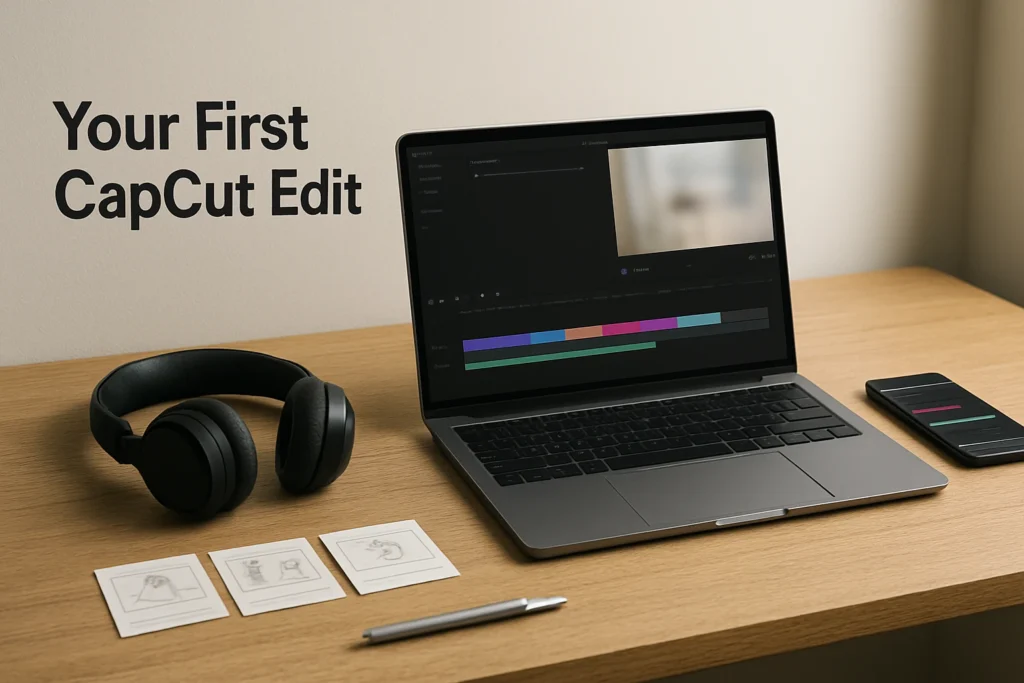
Learning how to use CapCut starts with a simple sequence: open CapCut on the web, mobile, Windows, or macOS, import your clips into a project, arrange and trim them on the timeline, add text or audio if needed, and export the result. This CapCut tutorial focuses on that shortest path to a finished video. For a first edit, prioritize clear clip order, clean timing, readable text, and a successful export rather than effects or complex automation.
What to prepare before you start
This CapCut tutorial for beginners works best when you make three decisions before importing anything.
- Choose your source media. Gather the video clips, images, and any audio you intend to use. Keep the originals until you have exported and checked the final video.
- Define one simple outcome. For example, plan a 15-second vertical recap containing three clips and a short opening title. A clear target makes trimming decisions easier.
- Choose a primary device. CapCut is available through the web and on Windows, macOS, iOS, and Android. Use the device where your footage is stored and where timeline work feels comfortable.
Decide whether you need a normal project or a template. A project gives you direct control over clip order, timing, separate tracks, text, and audio. A template supplies a prepared arrangement that you populate with your own media. Start with a project if you want to learn the editing process or control the pacing yourself.
If you plan to continue on another device, a local project will not transfer automatically. You need to upload the project to CapCut Spaces or cloud storage and sign in with the same account on the other device. Available cloud capacity depends on your plan.
How to use CapCut to create your first video
- Open CapCut and begin a project. Use the web version or an installed mobile or desktop version. Start a project intended for imported media rather than selecting a template. Exact controls and available tools can differ between versions.
- Import your media. Add the clips and other source files you prepared. The imported items become the material you can place on the editing timeline. For a first project, use only the media needed for the planned story so the workspace stays manageable.
- Place clips on the timeline. Arrange the clips in the order viewers should see them. Video, audio, images, and text can occupy separate tracks. Play the sequence once without making decorative changes. At this stage, success means every required clip appears in the intended order and the timeline has no accidental duplicate media.
- Remove unwanted footage. Use trimming to shorten the beginning or end of a clip. Use a split when unwanted footage sits in the middle, then remove the unnecessary section. Crop or resize footage when its framing does not suit the project. Replay each changed area to catch abrupt cuts or missing action.
- Add text if it serves the video. Place a short title or explanatory label on a text track. Keep it concise, position it away from important visual details, and preview it at the approximate size at which viewers will watch. Leave it on screen long enough to read comfortably.
- Add or refine audio if needed. CapCut supports audio tracks, music, sound effects, text-to-speech, voice enhancement, and noise reduction, although availability can vary. Keep speech understandable and avoid letting background audio overpower it. Automated audio results still require a listening check.
- Preview the full edit. Watch from the first frame to the last without stopping. Check order, pacing, framing, text timing, and sound. Make timing corrections on the timeline, then replay the affected section and the complete video.
- Export the finished video. Choose from the output settings available on your device and account, using the intended publishing destination as your guide. Options such as 2K or 4K are conditional on the platform, hardware, operating system, source media, and account. Complete the export and wait for the resulting video file.
- Verify the exported file. Locate the finished file on the device and play it outside CapCut. Confirm that it opens, plays to the end, contains the intended clip order, and preserves the expected framing, text, synchronization, and audio levels. Do not rely solely on the editing preview.
A simple three-clip example
Suppose you have three vertical clips from a café visit: an exterior shot, a drink being prepared, and the finished drink on a table. Your goal is a 15-second recap.
Import all three clips and arrange them in that order. Trim pauses from the start and end of each clip, keeping roughly five seconds of useful action from each. Add the title Afternoon coffee near the beginning and preview it for readability. If you add music, lower it enough that any useful recorded sound remains clear.
The illustrative success condition is a video that opens with the location, moves naturally through preparation to the finished drink, lasts about 15 seconds, and plays correctly after export. If the middle section feels slow, shorten that clip rather than adding an effect to disguise the pacing problem.
How to use CapCut templates when speed matters
To understand how to use CapCut templates, think of a template as a prepared edit rather than an empty timeline. It may contain established timing, layouts, effects, music, or other creative assets. Template availability and the changes you can make may differ by platform, device, account, and region.
- Choose a template that matches the job. Consider its orientation, number of media slots, pace, visual style, and likely viewing destination. A fast template is not useful if it crops your subjects poorly or leaves text unreadable.
- Replace its media with your own. Supply clips or images for the template arrangement. Choose media whose important action fits the available timing and framing.
- Review the assembled result. Watch the complete sequence for awkward crops, repeated frames, abrupt timing, unsuitable text, and audio problems. Revise what the template workflow allows or switch to a normal project when you need finer control.
- Export and inspect the file. Apply the same post-export playback check used for a manually edited project.
Templates can shorten setup, but supplied music and assets still carry usage conditions. In particular, CapCut Commercial Sounds are licensed for commercial use within CapCut, TikTok, and TikTok for Business. Publishing those sounds elsewhere requires separate rights. Decide where the video will be published before making included music central to the edit.
Check your video before you post it
Use this compact review after export rather than assuming the timeline preview represents the final file perfectly.
- Sequence confirms that every clip appears once and in the intended order.
- Timing checks for long pauses, accidental blank frames, abrupt endings, and text that disappears too quickly.
- Framing confirms that the subject remains visible and the orientation suits the destination.
- Text checks spelling, contrast, placement, and readability on the device people are likely to use.
- Sound confirms that speech, music, and effects are synchronized and appropriately balanced.
- Output verifies that the exported file opens, reaches the expected ending, and uses an available resolution appropriate for its destination.
For important work, review the file with headphones and then through the device speaker. Those two listening conditions can reveal different balance and clarity problems.
Common beginner problems
Media does not appear in the project
Confirm that you selected the intended source file rather than a thumbnail or copy from another location. Try importing one short, known-good clip. If that works, add the remaining files individually to identify the problematic item. Moving between devices will not make local media or projects appear automatically; cross-device project access requires the same account and an upload to Spaces or cloud storage.
The video has the wrong orientation
Check the project framing against the intended destination, then use crop or resize controls on clips that do not fit. Preview the whole sequence because a framing choice that suits one clip may cut off the subject in another. Avoid enlarging every clip automatically without checking its important content.
A clip is too long or contains a pause
Trim unwanted footage from the start or end. If the pause occurs in the middle, split around it and remove that section. Replay the surrounding cuts to ensure the action still makes sense and the audio does not jump unnaturally.
You are unsure whether the export saved correctly
Wait for the export process to finish, then find the resulting video on the device and open it outside CapCut. Scrub toward the end and play the final seconds to confirm the file is complete. If the file is missing or incomplete, return to the project, confirm sufficient device storage, and export again using settings available on that device.
Your next step is to make one short project using three clips and one title, then perform the full post-export check. Once that workflow feels reliable, add transitions, captions, audio cleanup, or templates one feature at a time.
Explore more technology guides on Techistuff.
Frequently Asked Questions About Using CapCut
Can beginners use CapCut without learning advanced effects?
Yes. A beginner can make a complete video using only media import, timeline arrangement, trimming, text or audio, preview, and export. Transitions, filters, automated tools, and visual effects are optional. Learning clean cuts and readable text first usually produces a more controlled result than adding many treatments immediately.
How do CapCut templates work?
A template provides a prepared arrangement that may include timing, layouts, effects, music, or other assets. You replace its media with your clips, preview the complete sequence, and adjust what the available template workflow permits. Template and asset availability can vary by platform, account, device, and region.
Can CapCut edit both vertical and horizontal videos?
CapCut includes crop and resize controls, so projects can be prepared for different orientations. Decide on the intended destination before editing, then review every clip for unwanted cropping or empty space. Available export settings depend on the platform, hardware, operating system, source media, and account conditions.
What should I check after exporting from CapCut?
Open the exported file outside the editor and watch it from beginning to end. Confirm the clips play in order, framing is correct, text remains readable, sound is synchronized, and the video ends where intended. Also verify that the file exists in the expected device location before deleting source media or project files.