This n8n tutorial shows how to use n8n to build one small automation from trigger to action. You will create a workflow that receives controlled test data, reshapes it and sends it to a connected destination. You will then inspect the execution, confirm the result and prepare the workflow for activation. Start in an n8n Cloud workspace or an already-operational self-hosted deployment.
n8n tutorial basics for a first workflow
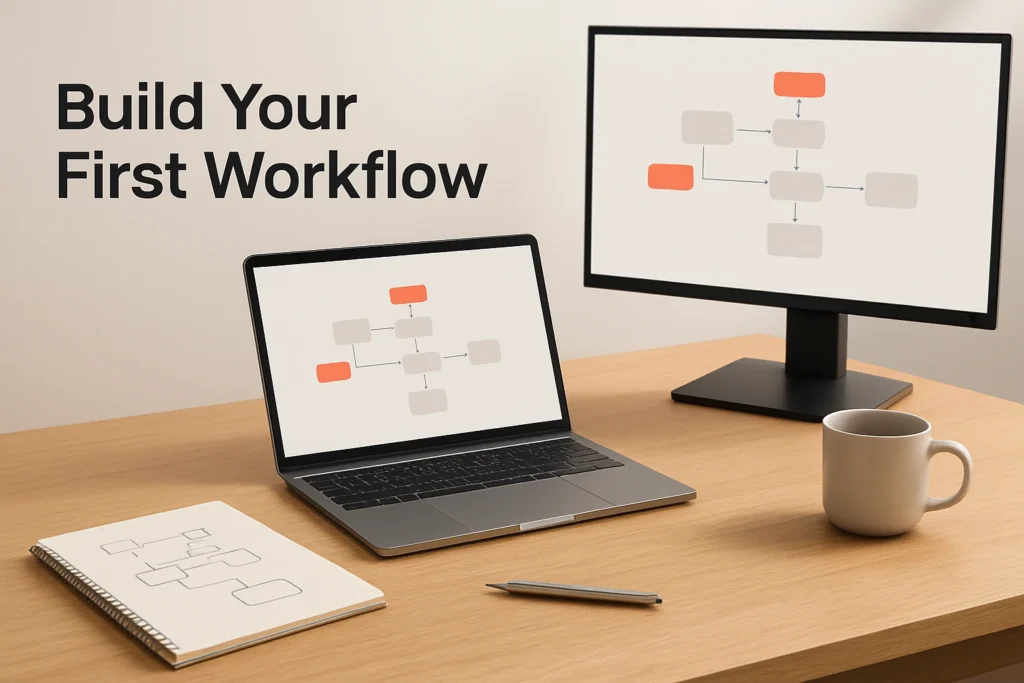
An n8n workflow represents a process as connected steps. Each step receives data, performs a defined operation and passes its output forward. A useful first workflow has four functional parts:
- Trigger starts the process after an event, such as an incoming webhook or a scheduled time.
- Input is the information supplied by the trigger, such as a name, email address and request type.
- Transformation selects, renames, combines or reformats fields so the next service receives suitable data.
- Action sends the prepared information to another system or starts an operation there.
An execution is one run of the workflow. It carries a particular set of data through the connected steps. This is distinct from an individual step: one execution can contain multiple nodes and operations.
For the worked example, imagine a webhook receiving a test contact record. A transformation turns the record into a concise follow-up message, and an action sends that message to a destination you control. The destination could be a compatible business service, but its available actions, authentication method and required permissions depend on that service.
Set up your first n8n workflow
This n8n tutorial for beginners uses a webhook because it makes the starting event and incoming data easy to distinguish. If your real process is time-based, you can later replace it with a schedule. Keep the first version small enough that you can see exactly what each step changes.
- Open a blank workflow. Use the web interface for your n8n Cloud workspace or self-hosted instance and create a new workflow. Give it a descriptive name such as “Test contact follow-up.” At this stage, the workflow is an empty process rather than an active automation.
- Add the webhook trigger. Configure the starting step to receive a request from an external sender. Use the receiving details provided by your deployment to send controlled test data into the workflow. The trigger’s resulting output should contain the submitted payload.
- Submit a small sample record. Use invented information rather than a real customer record. Include only fields needed later, such as a record ID, name, email address and request type. Send the request while the workflow is ready to capture test input, then inspect the trigger output to confirm that the expected fields arrived.
- Add a transformation step. Connect a processing node after the trigger and map the incoming values into the structure needed by the action. Visual field mapping is sufficient for a simple first workflow. JavaScript or Python can support custom logic, but adding code is unnecessary when you only need to select, rename or combine fields.
- Connect the destination action. Add a node for the service that should receive the transformed data. Supply a valid credential or connection with permission to perform the intended action. Choose a low-risk destination, such as a private test channel, sandbox or record you can delete, when your connected service provides one.
- Map the action fields. Match each required destination field to the relevant transformation output. Do not assume similarly named fields are compatible. Check whether the destination expects plain text, an email address, an identifier or another format.
- Save the workflow without activating it. Review the complete trigger-to-action path first. The resulting draft should show one starting event, one processing step and one destination action connected in the intended order.
Illustrative input Record ID “TEST-001,” name “Maya Chen,” email “maya.example@example.com” and request type “Demo inquiry.” The transformation could produce the illustrative message “New demo inquiry from Maya Chen — TEST-001.” Map that message to a text field in the destination action.
This example has a clear success condition: the test execution completes, the transformation contains the record ID and name, and exactly one corresponding test item appears in the destination. The sample result is illustrative; the actual output depends on the trigger, action and service you configure.
Test the workflow before activating it
Run the workflow with the controlled sample payload while it remains in test mode. Testing should verify the data at each boundary rather than only showing that the final step reported success.
- Inspect the trigger input. Confirm that the sample request arrived and that required values are present. If a field is missing here, correct the sender or trigger configuration before changing later nodes.
- Inspect the transformation output. Check field names, values and formats. If the input is correct but the transformed message is incomplete, revise the mapping or transformation logic.
- Inspect the action input and result. Make sure the action received the transformed values, then check the connected service for the intended record, message or operation.
- Review the execution record. n8n provides execution logs and step inspection for diagnosing behavior. Workflow history, mock or replay data and step reruns can also help reproduce a problem without rebuilding the workflow.
If the first run fails, begin with the least disruptive checks. A credential error usually means the connection is invalid, expired or lacks the required permission. A validation error points to a missing required field or incompatible data format. Empty action fields generally indicate a mapping problem between the transformation and action.
Avoid repeatedly running the complete workflow while troubleshooting an action that creates records, sends messages or changes external data. A retry can repeat a side effect even when the previous result was unclear. Check the destination for “TEST-001” before submitting the same payload again, or use a new unique test ID.
Prepare the workflow for real use
Once the test succeeds, replace invented input assumptions with the conditions of the real process. Confirm which event should start the workflow, what fields it can reliably provide and how incomplete records should be handled. A scheduled workflow needs an appropriate interval, while a webhook workflow needs the sending system to direct events to the correct receiving configuration.
Before activation, complete this short review:
- The trigger represents the real production event.
- Required input fields are present and mapped to the correct types.
- The connected credential has only the permissions needed for the action.
- The destination is the intended production location rather than a test target.
- A controlled execution has completed without creating unintended duplicates.
- Someone knows how to inspect failed executions and correct the underlying data or connection.
Use the workflow’s activation control only after these checks pass. Then submit one known production-safe event and inspect its execution record and destination result. Continue monitoring later executions because credentials can expire, payloads can change and external services can reject requests.
Keep workflow logic separate from the connected application’s rules. n8n can map data and submit an operation, but it cannot grant itself access that the supplied credential does not have. The external service may also impose its own API limits or validation requirements. Self-hosted users additionally remain responsible for operating, updating and monitoring the n8n environment itself.
Choose the next workflow carefully
Your next automation should add only one new difficulty, such as a second action, a conditional path or a scheduled trigger. Reuse the same method: define the event, inspect its data, transform only what is necessary, connect a permitted action and verify the result at both the execution and destination levels. This turns a first successful workflow into a repeatable way to build reliable automations.
Explore more technology guides on Techistuff.
Frequently Asked Questions About Using n8n
Is n8n suitable for beginners?
Yes, provided you begin with a small workflow and are willing to learn basic data mapping and credential management. The visual builder makes the sequence easier to understand, but workflows involving custom APIs, unfamiliar payloads or self-hosted infrastructure may require technical assistance.
Do I need to code to use n8n?
Not for every workflow. Pre-built nodes and visual data mapping can handle many common processes. JavaScript, Python and custom HTTP or GraphQL requests are available when a workflow needs logic or an integration that visual configuration alone does not cover.
What is the difference between a trigger and an action?
A trigger starts the workflow when a defined event occurs, such as receiving a webhook or reaching a scheduled time. An action performs work after that event, such as creating a record or sending information to a connected service.
How do I know an n8n workflow worked?
Check that the execution completed, inspect each step’s input and output, and verify the intended result in the destination service. A successful execution record is useful, but the destination check confirms that the business action actually occurred as expected.
What should I study next in n8n training?
After completing one workflow, learn conditional paths, failure handling, credential management, reusable field mappings and execution monitoring. Then explore webhooks, custom API requests or code steps only when a real process requires them.