The Photopea remove background workflow is straightforward: open the image, select the foreground subject, use a mask to hide the surrounding area, refine the boundary and export the result as a PNG. PNG supports transparent pixels, while a layered PSD is the better choice for retaining an editable mask. The best selection approach depends on the image: clean contrast allows a broad initial selection, whereas hair, fur and translucent edges require slower mask corrections.
Photopea remove background steps for a transparent image
Here is how to remove background in Photopea without turning the task into a full photo-editing project. Photopea runs at Photopea.com in a browser and processes its core editing work locally on your device.
- Open the source image. Load Photopea and open or import the JPG, PNG or other supported image you want to edit. Confirm that the correct document is active in the central workspace and that its image layer appears in the layer stack.
- Preserve an editable source. Keep the original file unchanged and work in a separate document or copied layer. Save the working document as a PSD early if you want to retain layers and masks. This also reduces the risk of losing the whole edit if the browser closes.
- Decide what is easier to isolate. If the subject has a clear outline against a plain background, select the subject directly. If the background is a large area of one similar color, it may be easier to identify the background first and then convert the selection so the subject is the retained area.
- Create the initial selection. Choose an appropriate selection tool from the left toolbar and work around or across the subject. The controls shown near the top of the workspace change with the active tool. Aim for a useful first boundary rather than trying to perfect every strand of hair or tiny gap immediately.
- Hide the background with a mask. Apply the foreground selection as a mask so the selected subject remains visible and the surrounding pixels are hidden. A mask is preferable to permanently erasing the original pixels because it can reveal areas again if the selection cuts into the subject. If you choose destructive removal instead, do it on a copied layer.
- Inspect the entire outline. Magnify the document and look for background islands, missing subject areas and bright or dark fringes. Check narrow spaces such as the gap between an arm and the body, product handles, loops and loose hair.
- Save and export separately. Save the layered project as a PSD for future corrections. Export a separate PNG for use in a website, presentation or layout that needs transparency.
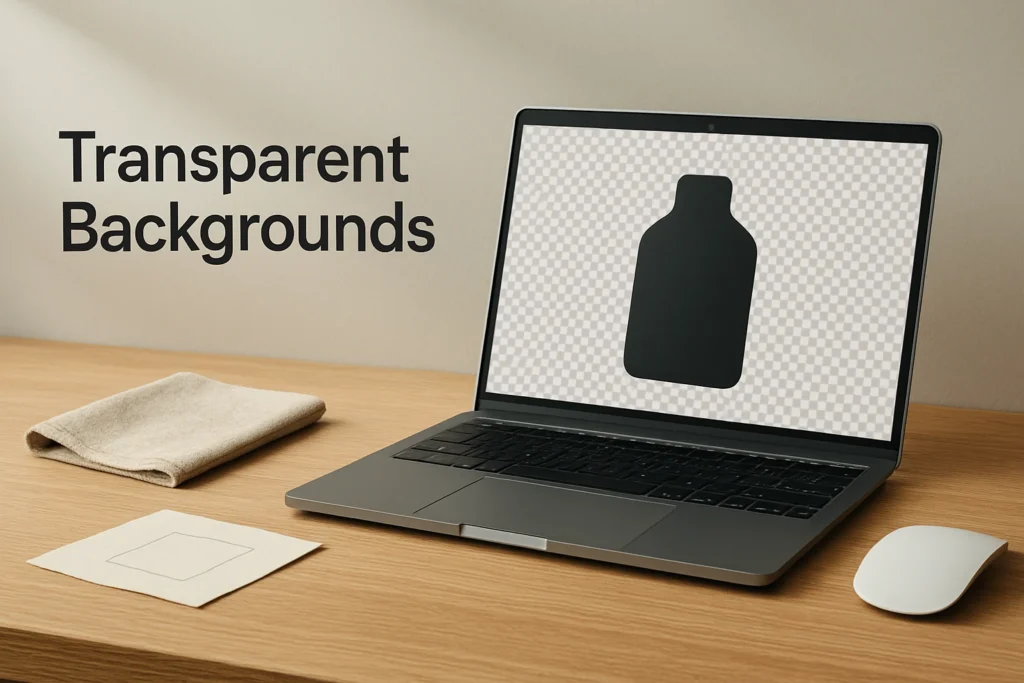
Illustrative example. Suppose the source is a dark reusable bottle photographed against a plain light wall. Start by isolating the bottle’s main outline, including the cap and handle opening. Apply that foreground selection as a mask. The expected result is a visible bottle surrounded by transparent space, with no wall remaining inside the handle. If a pale rim remains along one side, edit the mask with a small brush until the rim disappears without cutting into the bottle.
If the first attempt goes wrong, use Photopea’s undo or history states to return to an earlier point. When working with a mask, you can instead revise only the problem area while leaving the rest of the cutout intact.
Choose the right selection method for the image
The fastest method is determined by contrast and edge complexity, not simply by the size of the image. Use these decision rules:
- Plain, contrasting background. Begin with a broad color- or area-based selection. Inspect where similar colors appear inside the subject because they may be included accidentally.
- Simple object with a crisp outline. Trace or build the selection around the object. This takes longer than selecting a uniform background but provides more deliberate control around corners and straight edges.
- Hair, fur or foliage. Make a conservative initial selection that retains fine detail, then improve the mask gradually. A hard, aggressive cut often removes individual strands and creates an artificial outline.
- Transparent or reflective material. Expect additional manual work. Glass, veils, smoke and reflections contain partially visible background information, so a basic hard-edged selection may not produce a natural result.
- Low contrast. If the subject and background have similar colors, work in smaller sections and inspect the boundary closely. Automatic-looking broad selections are more likely to cross the true edge.
A mixed approach is often most efficient. Build the main silhouette first, then handle holes, hair and other difficult regions separately instead of forcing one selection operation to solve every edge.
Refine edges without destroying the source
Inspect the mask at a useful zoom level, but also return to the normal viewing size periodically. Extreme magnification can encourage unnecessary pixel-by-pixel edits that do not improve the final asset.
When editing the mask, hide areas where old background pixels remain and reveal areas where the subject was removed accidentally. Use a smaller brush near detailed boundaries and a larger one for broad corrections. A softer transition can help with naturally soft edges, while product packaging and other hard objects usually need a more defined boundary.
Place a temporary light color behind the cutout to reveal dark fringes, then switch to a dark color to expose pale halos. This temporary layer is only an inspection aid; hide or remove it before exporting the transparent copy. Also inspect enclosed spaces within the subject, because missed background pixels often survive in handles, bent arms, lettering counters and gaps between strands.
The edit is ready when the subject has a believable outline, the surrounding region is transparent, and no inspection color is visible as a fringe. Keep the layered PSD as the editable master. Photopea uses PSD as its primary editable format, allowing the layer structure and mask to remain available for later corrections.
Export the cutout with a transparent background
Before exporting, hide any temporary inspection layers and confirm that no opaque background layer remains visible. Export the finished cutout as a PNG, which can retain an alpha channel for transparent and partially transparent pixels. Do not use JPEG for this purpose because JPEG does not preserve transparency.
After saving the PNG, test the actual exported file rather than relying only on the editor view. Reopen it or place it over a strongly colored background in another document. The color should appear everywhere outside the subject and through legitimate openings within it. If white, gray or remnants of the original scene appear instead, return to the PSD, correct the mask and export a new PNG.
Keep both files: the PSD is the revisable working document, while the PNG is the delivery copy. This separation makes it possible to fix an edge later without rebuilding the selection from the beginning.
Explore more technology guides on Techistuff.
Frequently Asked Questions About Using Photopea
Why does the removed background still look white?
The white area may come from an opaque layer beneath the subject, or it may simply be how another app displays transparent pixels. Hide any unwanted background layers, export as PNG, and place the file over a colored shape or page. If the color shows around the subject, those pixels are transparent.
Why did transparency disappear after export?
The usual causes are exporting to a format without alpha transparency or leaving an opaque background layer visible. Export a PNG and make sure the document contains transparent space around the subject before exporting. JPEG does not preserve transparent pixels, so it is unsuitable for this result.
How can I fix an imperfect selection?
Keep the cutout controlled by a mask and edit that mask at a higher zoom level. Hide leftover background areas and reveal any subject details that were removed accidentally. Alternate between light and dark temporary backgrounds to expose pale halos, dark fringes and missed gaps.
Can a Photopea mask be edited later?
Yes, a mask is intended to hide and reveal content non-destructively. Save the working document as a PSD to retain its layers and masks for later editing. A separately exported PNG is useful for delivery, but it should not replace the editable PSD master.